
How to Add and Use Surfshark VPN
Using Surfshark VPN helps keep your connection secure and stable. Follow the steps below to install and use Surfshark VPN, then update your Implayer playlist.
You can follow the step-by-step video tutorial below on how to add and Use surfshark vpn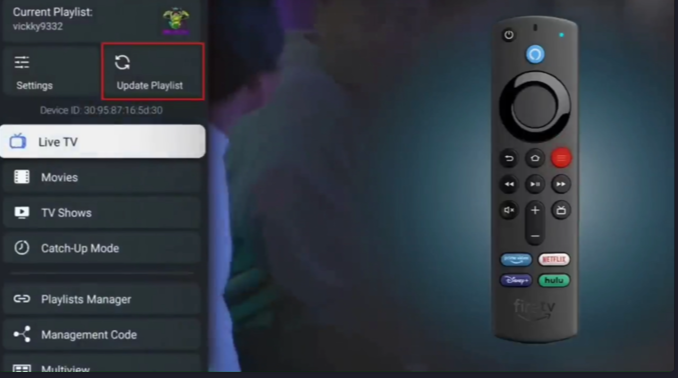
Step 1: Install Surfshark VPN
-
Go to the Home screen on your device.
-
Select Find.
-
Type Surfshark in the search bar.
-
Click on Surfshark VPN App.
-
Click Download and wait for the installation to finish.
Step 2: Open and Connect Surfshark VPN
-
Open the Surfshark VPN app.
-
Log in to your Surfshark account.
-
Click on Quick Connect.
-
Select OK on the connection request screen.
Once connected, leave the VPN running in the background.
Step 3: Update Implayer Playlist
Now that the VPN is connected, update the Implayer playlist:
-
Press the Home button on your remote.
-
Open the Implayer app.
-
Press the three-line menu button to open the left menu.
-
Click on Update Playlist.
That’s it! Surfshark VPN will stay connected in the background while Implayer updates the playlist.